
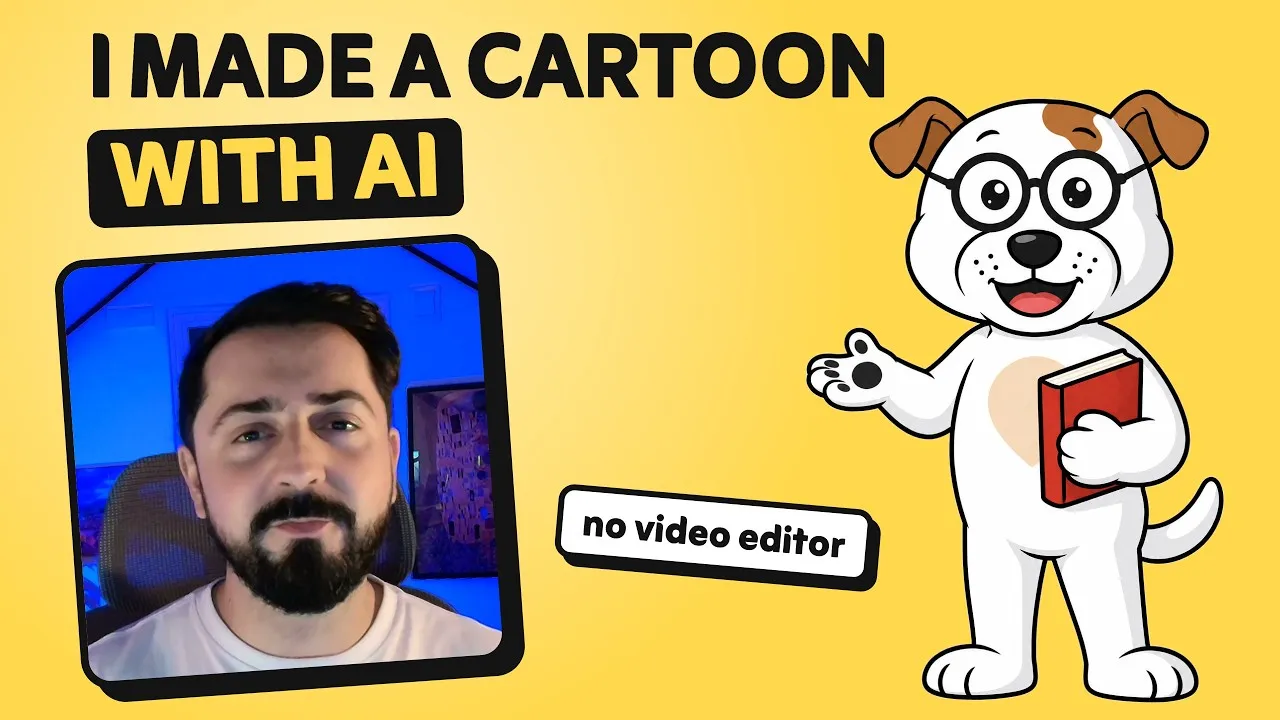
I made an animated video with AI, and I did not open a video editor once. A cartoon dog talks directly to the camera, explains how he was created, and dances at the end.
Drawings are the actors and code is the director
The core insight from this project is simple: drawings are the actors, and code is the director. Every body part is a separate piece that code tells how to move.
Step 1: Describe the character in normal words
A couple of hours before the video existed, the dog was just one sentence. My whole job was writing a plain description: “A wise dog with glasses.” That was it.
Claude took over from there. It wrote the story, the script, and most of the character’s personality.
Step 2: Draw options on the board
Claude used Paper as the drawing board and drew three options. It sketched a sage, a professor, and the dog character that ended up in the video.
The dog won the selection, so we took that sketch into the next phase.
Step 3: Polish the winner into vector pieces
The rough drawing needed cleanup. Codex acted as the illustrator, giving the character a glow-up to produce polished art and gestures.
Gemini 4 Argon turned the artwork into vector drawings that code could animate. The dog’s ears, glasses, and tail had to be separate pieces so the code could control each part independently.
Step 4: Make it move with written instructions
Once the pieces were separated, Claude wrote every line of the animation code. It gave the pieces tiny instructions: blink here, wag there, bounce when talking.
A video is just thirty pictures a second. For this animation, Claude drew about 3,600 frames.
Step 5: Give the character a voice
The voice is completely AI-generated. ElevenLabs produced the dog’s voice and the sound effects.
I did not record narration for the character. My own voice only appears briefly at the very beginning and at the end of the video.
Step 6: Render every frame without a video editor
Here, no video editor was used at all.
A headless robot browser photographed every frame, one after the other. Then FFmpeg glued all 4,700 frames together into the final video file.
Changing the animation is a code edit
Because the animation is driven by code, a change to the animation is a change to the code. You just ask for what you want changed.
When asked to make the dog’s tail wag faster, the code updated the movement logic directly.
Seedance and Suno handled the bonus dance scene
Near the end of the video, we tested what a dedicated video model would do with the character.
Seedance 2.5 on fal.ai animated the dance scene. Suno generated the background music that plays during the dance.
The prompt is on screen at 2:17
The full prompt used to run this workflow is shown on screen at 2:17 in the video. You can pause, screenshot it, and test it yourself.
What to copy, even if you never make an animated video
- Separate visual assets into individual components so code can address them on their own.
- Let code act as the director for repetitive movements, timing, and frame generation.
- Use a headless browser and FFmpeg to assemble image sequences into video files directly from code.
- Iterate on movement and timing by changing instructions in code.
Tools I used
- Claude Code (Claude Opus 5.5): story, script, every line of animation code, rendering
- Paper: character design and storyboard
- Codex: polished character art and gestures
- Gemini 4 Argon: vector drawings the code can animate
- ElevenLabs: the dog’s voice and sound effects
- Seedance 2.5 on fal.ai: the dance scene
- Suno: the music
- FFmpeg: turned frames into the video alongside a headless browser
- A headless browser: photographed every frame before rendering
Video chapters
- 0:00 Intro
- 0:16 Who made the dog?
- 0:38 Step 1: Describe it
- 0:48 Step 2: Draw options
- 0:57 Step 3: Polish the winner
- 1:04 Pictures vs. code
- 1:16 Step 4: Make it move
- 1:23 A video is 30 pictures a second
- 1:33 Step 5: Give it a voice
- 1:41 Step 6: Render it, no video editor
- 1:51 Want a change? Just ask
- 1:59 Bonus: what a video model does with him
- 2:17 How you can do it too